Back-office
Overview
The PayperCloud solution enables communication between a cash register and a payment terminal through cloud-based web services. This architecture allows a point-of-sale system to remotely trigger payment requests on a terminal and retrieve transaction results in real time.
This document describes how to configure the different elements of the platform from the back-office in order to establish this communication.
Quick navigation
Integrator- I am a Cash Register Integrator and I need to setup my environment → Paypercloud Setup
- I am technician and I need to setup a Terminal with the Paypercloud App → Terminal Configuration
- I am technician and I need to manage Users → User Management
- I am technician and I need to create New Customer/Store → Initial Configuration
Key Concepts
For clarity, the main components of the system are summarized below:
- A Customer represents the main account
- A Store represents a location or business unit
- A POS Group links devices together
- A Remote POS corresponds to the cash register (transaction source)
- A POS corresponds to the payment terminal (transaction target)
The interaction between these elements is based on the principle that a cash register sends requests to a terminal, which executes the payment and returns the result.
Important Notes
It is important to clearly distinguish the roles of each component:
- A Remote POS acts as the source of the transaction (cash register)
- A POS acts as the target of the transaction (payment terminal)
Communication between them is only possible if they are configured within the same POS Group.
The QR Code provided in the back-office is mandatory for configuring the terminal and ensures a secure and simplified setup process.
POS Architecture
The Store is the central workspace where all further configuration will take place.
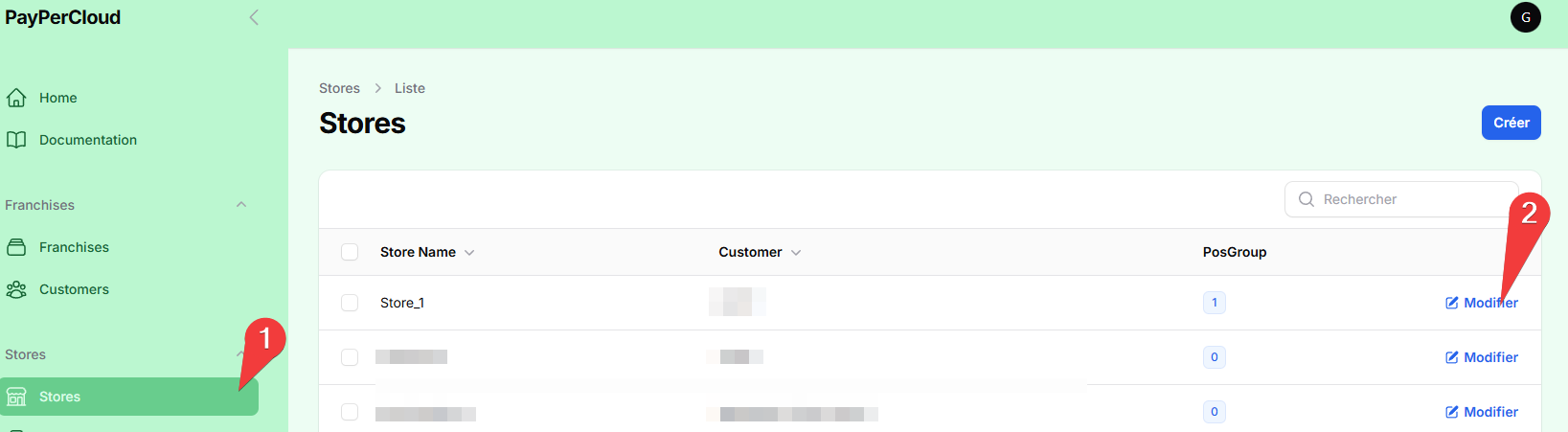
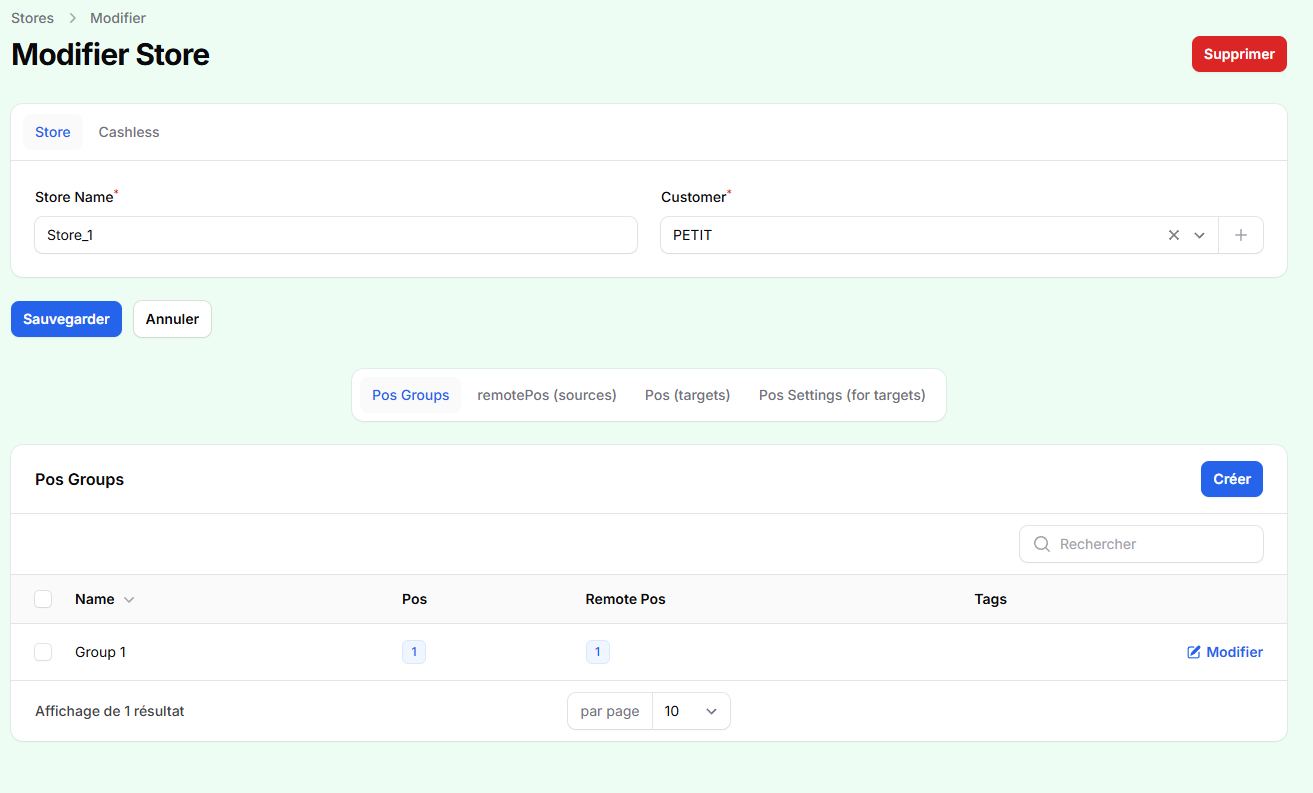
To allow communication between systems, PayperCloud relies on a grouping mechanism and two distinct types of POS entities.
POS Group
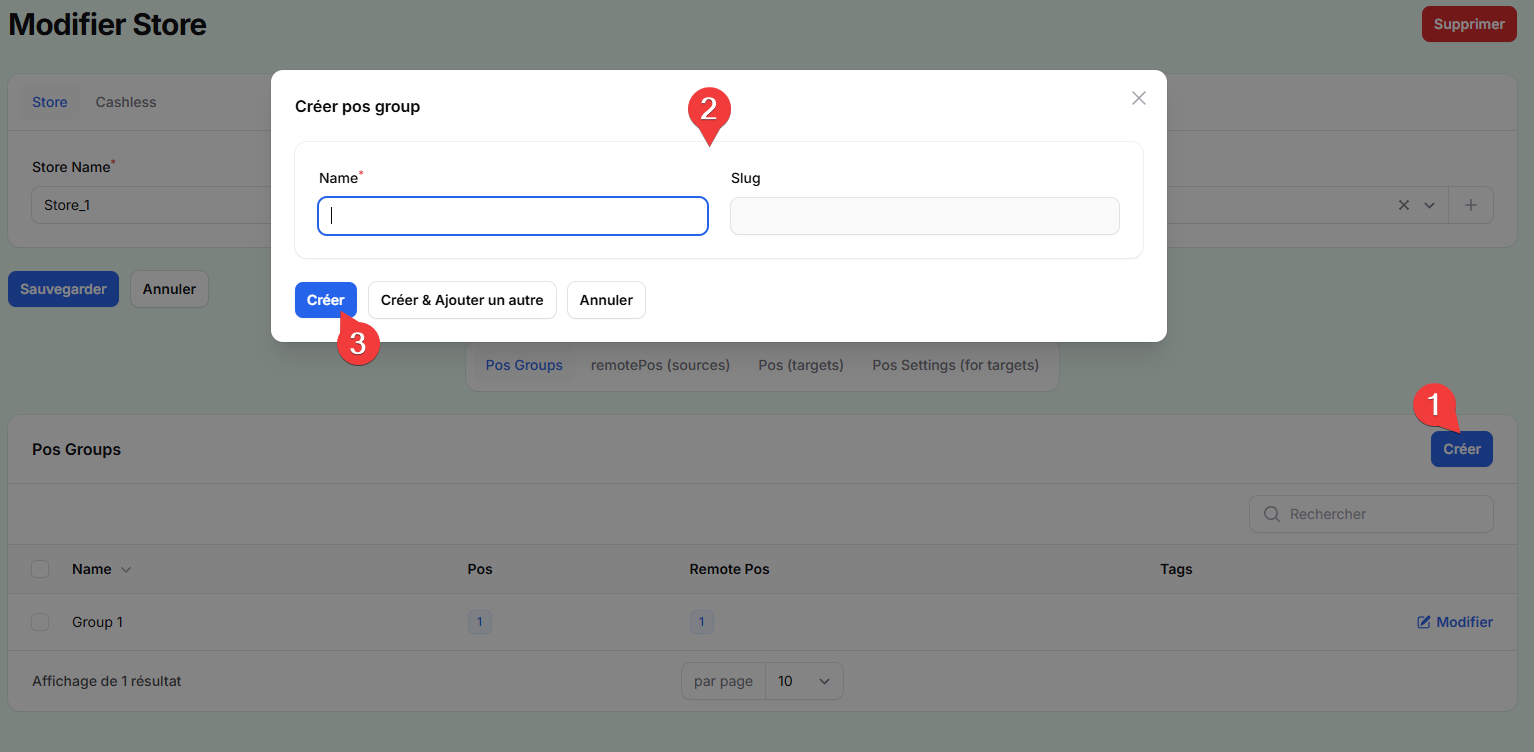
A POS Group is used to logically link devices that need to communicate with each other. Any interaction between a cash register and a payment terminal is only possible if both belong to the same group.
You can create a POS Group directly from the Store page by assigning it a name.
Remote POS (Source)
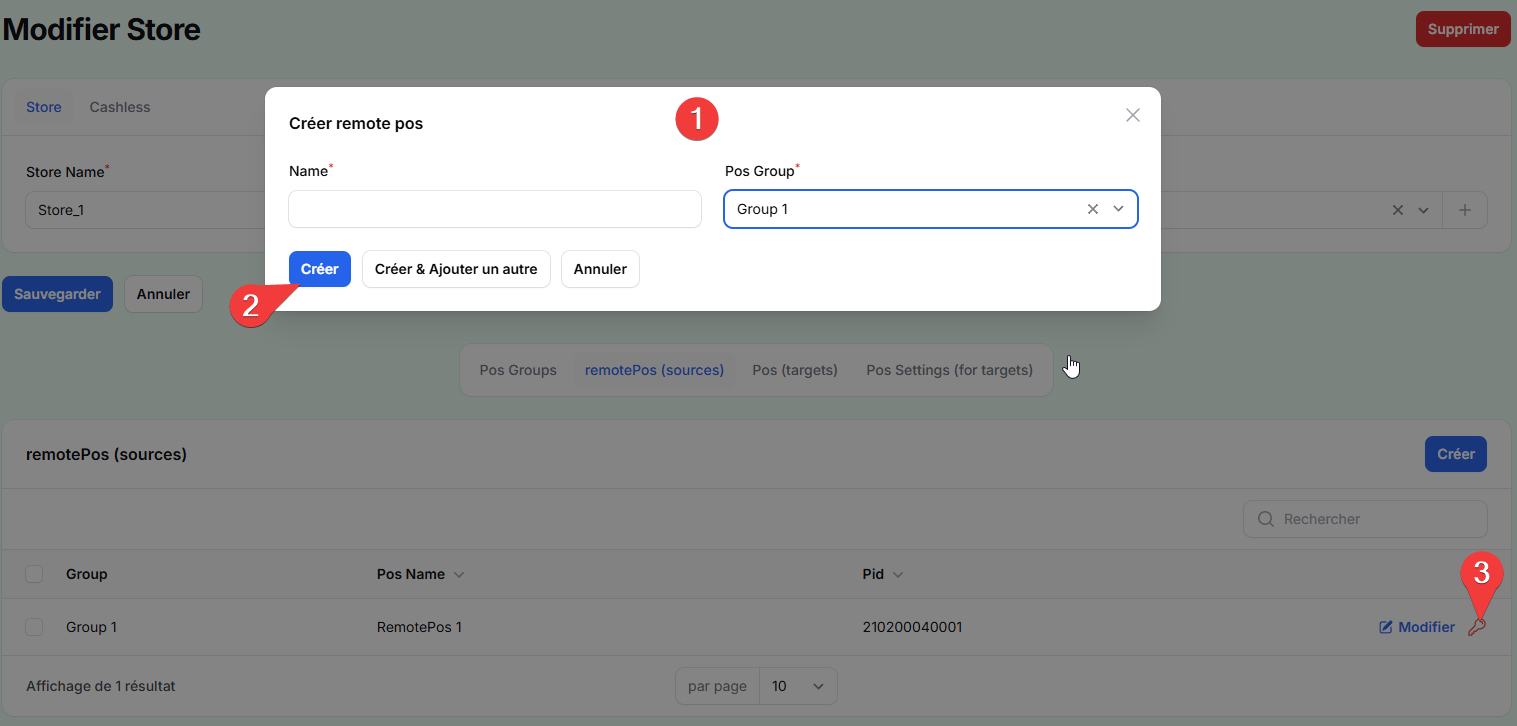
The Remote POS represents the cash register system, meaning the source of the transaction. It is responsible for initiating payment requests.
When creating a Remote POS, you must assign it to a POS Group. Once created, you can generate a secret key. This key is essential for authentication and must be used to generate tokens via the API.
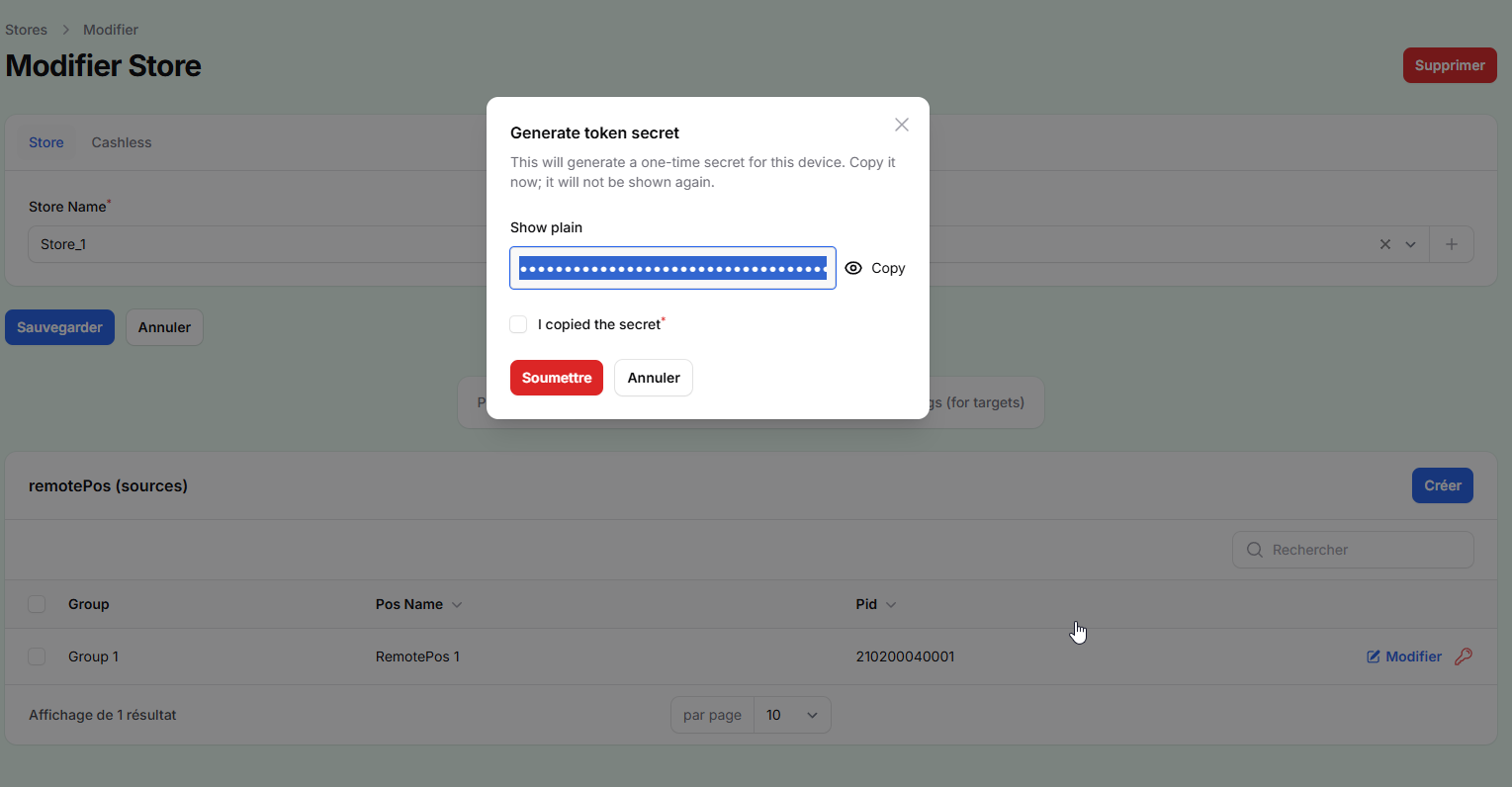
This is a one time secret, it will never be shown again.
For easier maintenance, we recommend naming the Remote POS with the name of the cash register or the store it is associated with.
POS (Target)
The POS represents the payment terminal, which receives and executes payment requests sent by the Remote POS.
Similarly to the Remote POS, it must be assigned to a POS Group. This association is critical, as it ensures that both components can communicate.
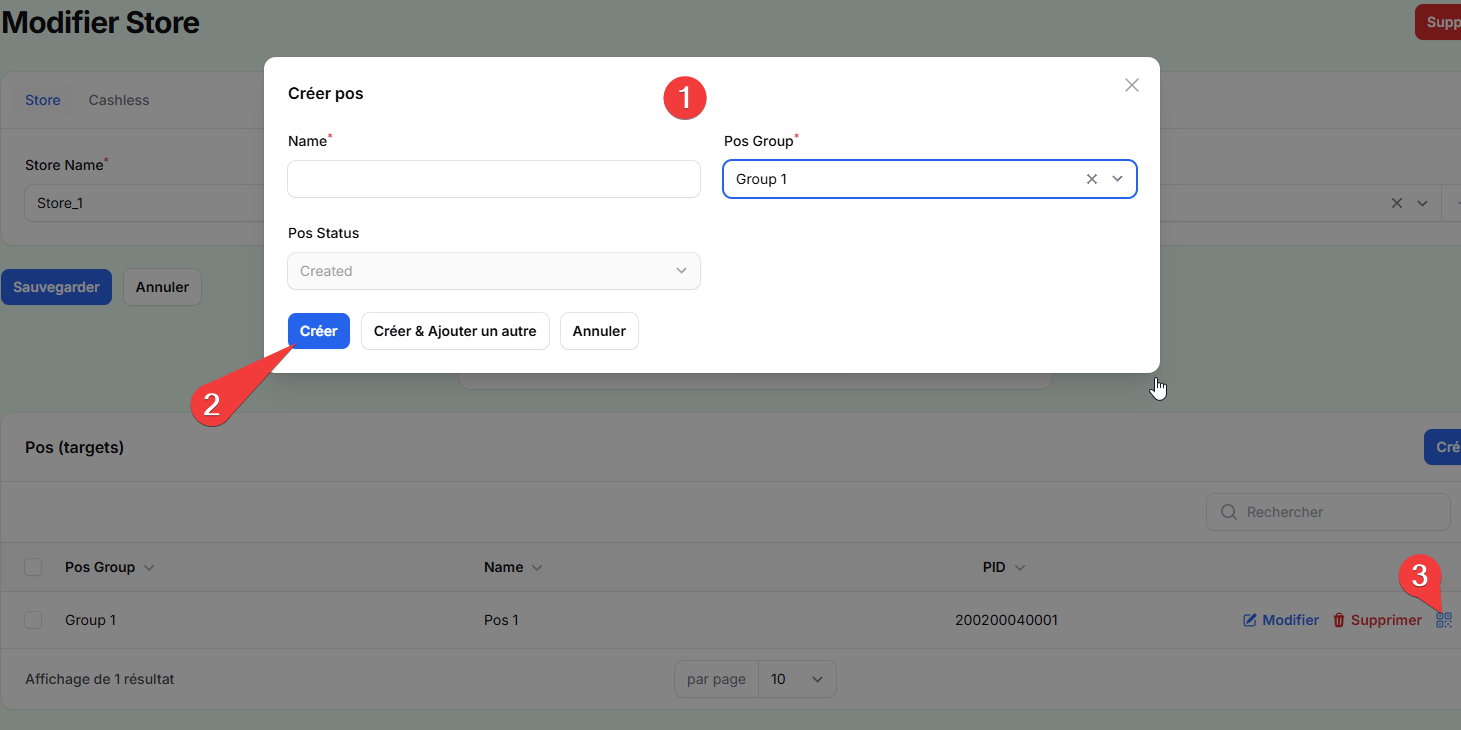
For easier maintenance, we recommend naming the pos with a name similar to the remotePos it is associated with, for example by adding "Terminal" at the end of the name.
A Remote POS (source) and a POS (target) must belong to the same POS Group to communicate.
Terminal Configuration
Once the back-office configuration is complete, the payment terminal must be connected to the platform.
When the PayperCloud application is launched on the terminal, it displays a configuration screen requesting a QR Code. This QR Code contains the necessary information to connect the device, including the POS identifier, API credentials, and server URL.
The QR Code can be retrieved from the back-office by navigating to the POS (Targets) section, selecting the appropriate POS, and displaying its QR Code.
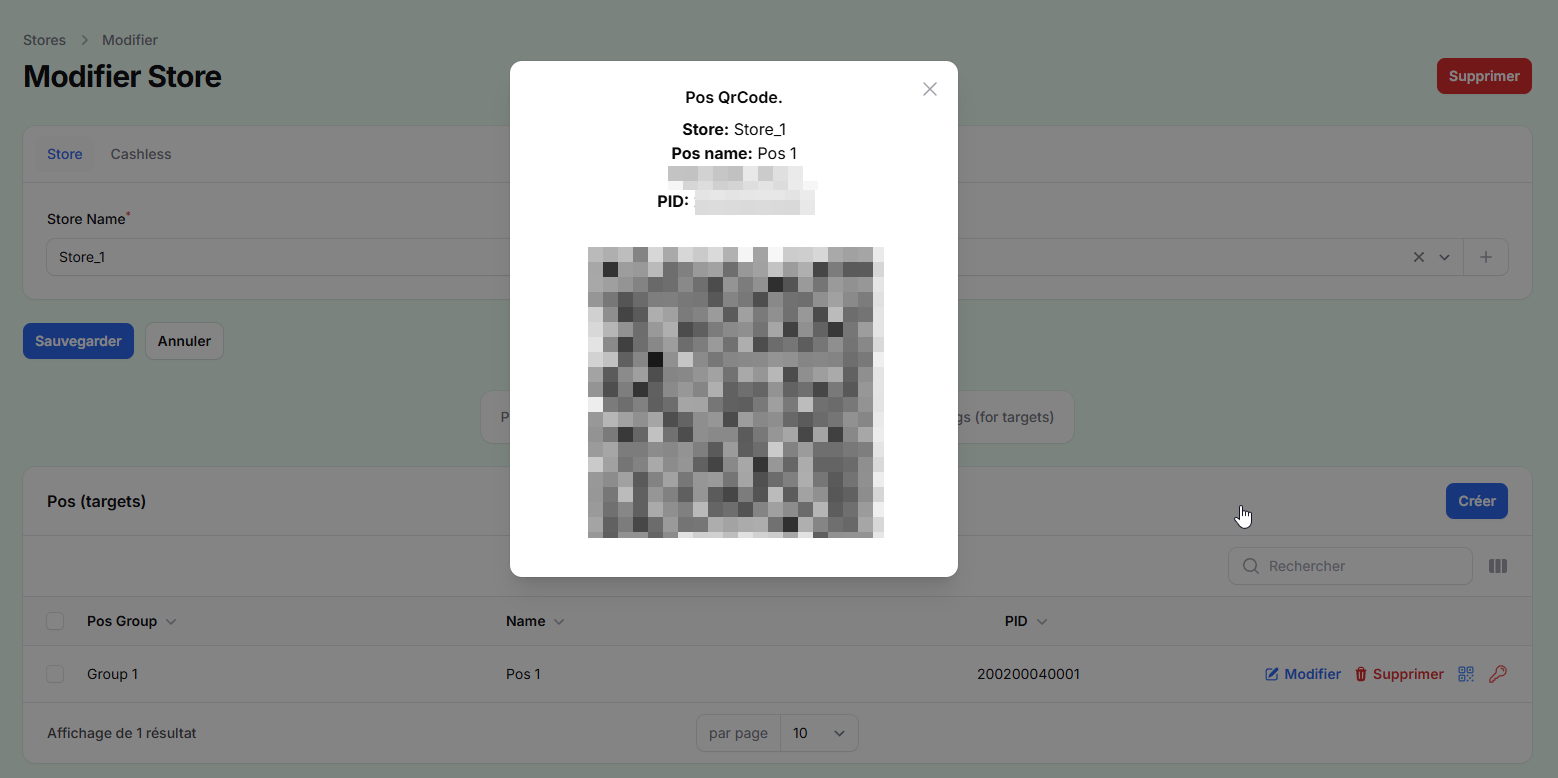
By scanning this code with the terminal, the configuration is automatically applied. The terminal is then ready to receive remote payment requests from the associated Remote POS.
To do the following points, you have to be an Admin
Initial Configuration
The first step in the setup consists of creating the main entities that will structure your environment.
Create Customer
You must begin by creating a Customer, which represents the top-level entity of your organization. This is done from the Customer section of the back-office by providing the required information.

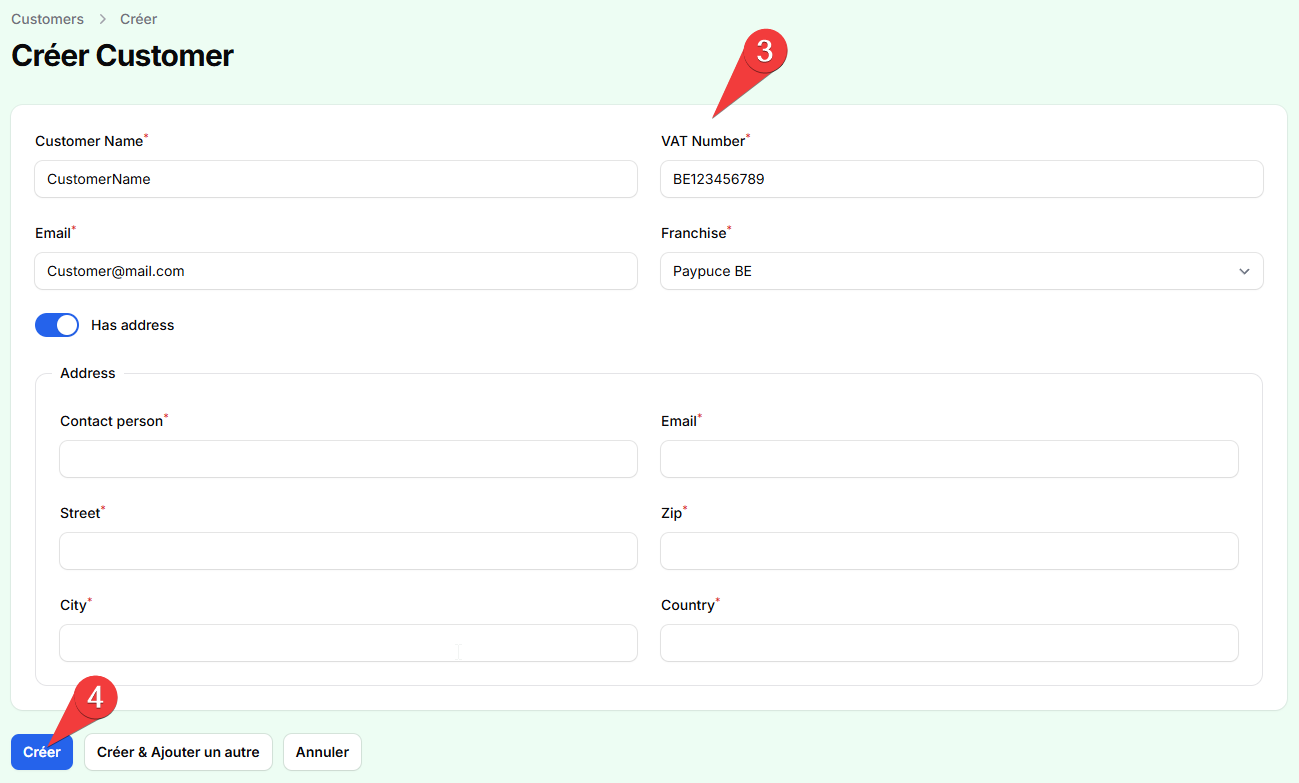
To do the following points, you have to be at least Customer Admin
Create Store
Once the Customer is created, you can define one or more Stores. A Store represents a physical or logical location in which payment devices will operate. During the creation process, you must associate the Store with the previously created Customer. Optionally, you may enable the Cashless feature if your setup requires it.
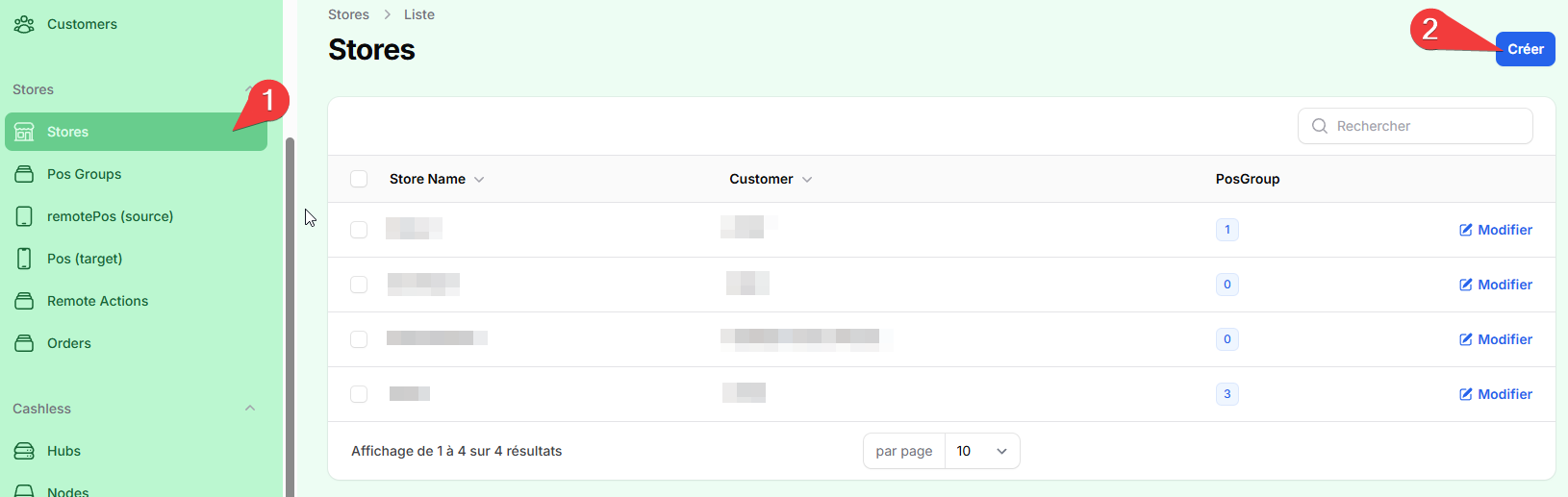
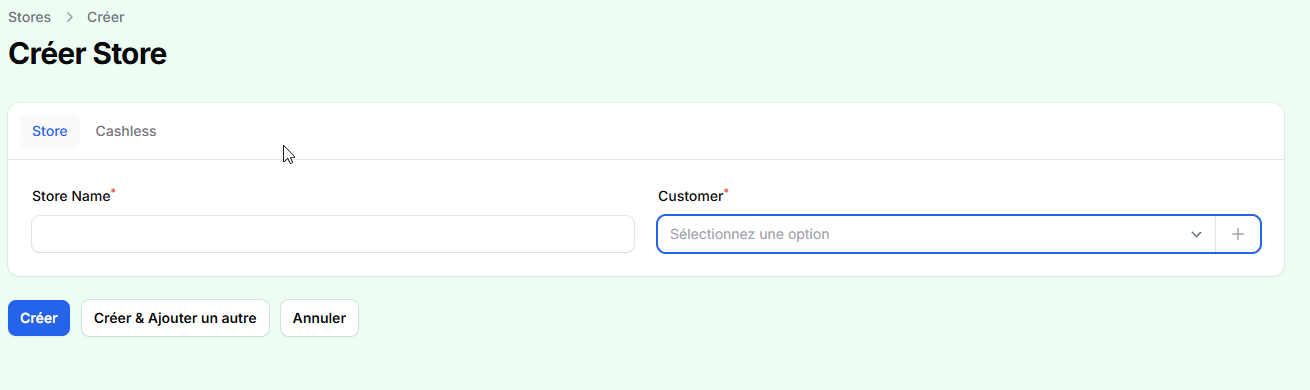
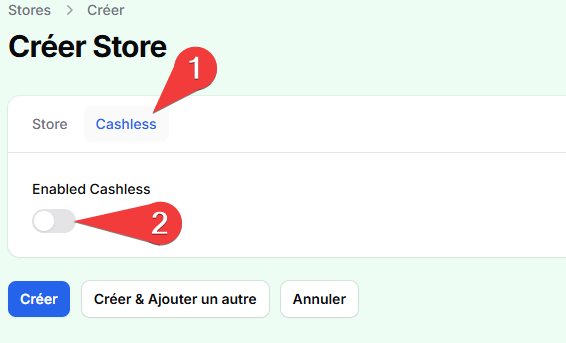
After saving, the Store becomes the central workspace where all further configuration will take place.
To do the following points, you have to be at least Customer Admin
User Management
Access to the back-office is managed through users and roles.
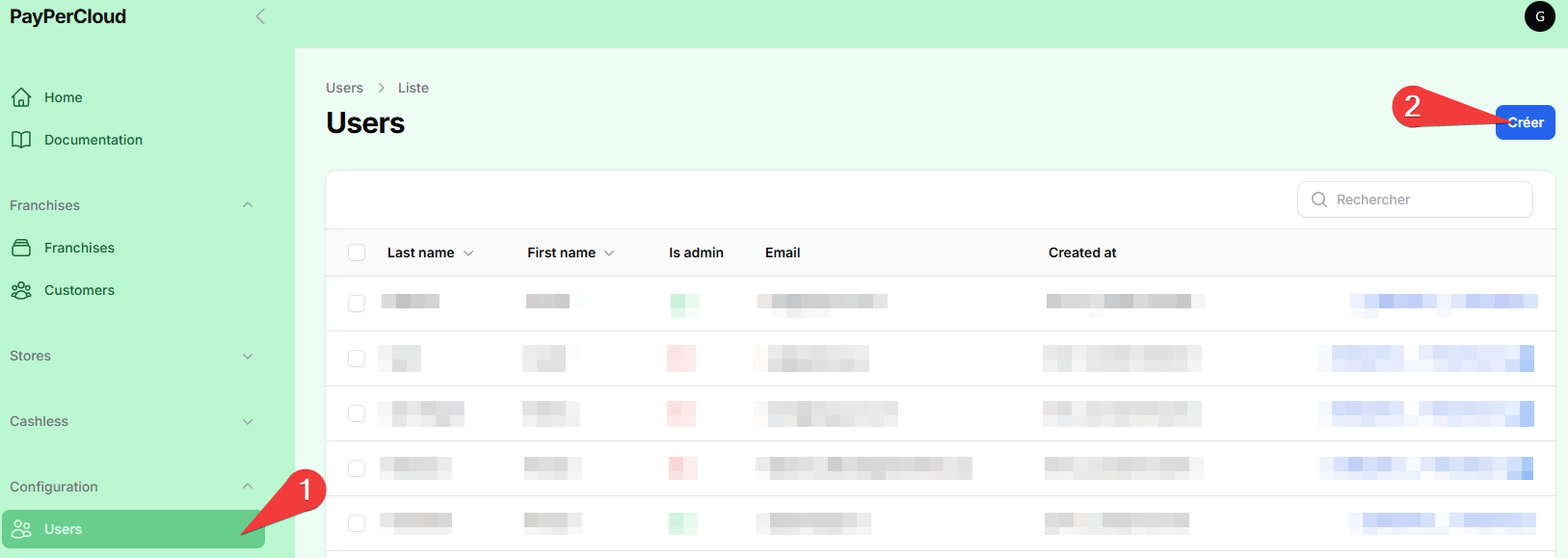
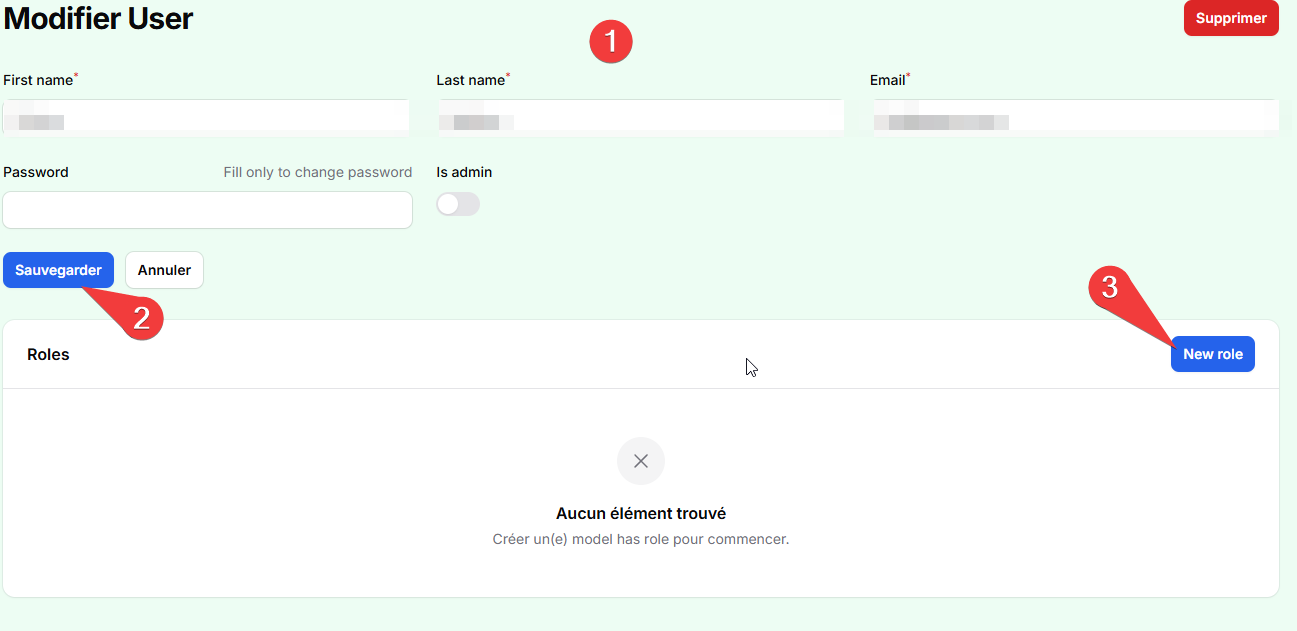
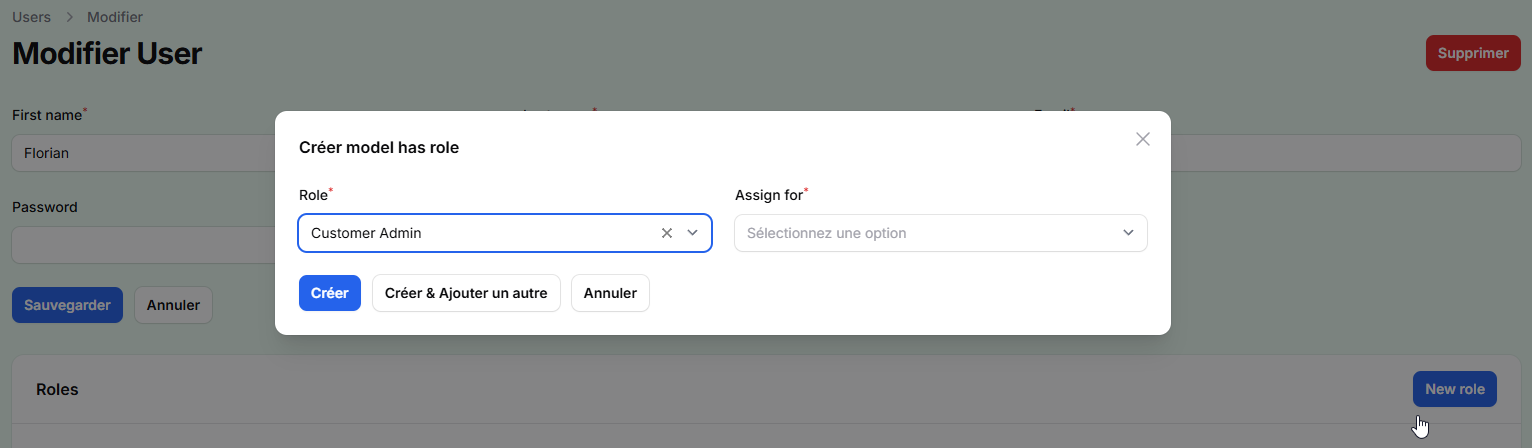
A user can be created from the User section and assigned to a specific Customer or Store through a role. Once created, an invitation email can be sent to the user, allowing them to define their password and access the platform securely.